Connect to your VPS over SSH
Your VPS is a Debian container with its own users, services and sudo access. SSH is the protocol for logging in to it securely from a terminal on Linux, macOS or Windows. At the end of this guide, you can log in with an SSH key instead of a password.
What you need
- Password from your welcome email.
- An SSH client, which is the
sshcommand in a terminal. Linux and macOS include it.
First login
Open a terminal and run this command. Replace yourname with your account name. SSH is available on port 2137.
ssh yourname@vps.nasiadka.pl -p 2137
The first time you connect, SSH asks "Are you sure you want to continue connecting?". Type yes to save the server's fingerprint on your computer. Then enter the password from your welcome email.
After you log in, change the password in Settings with "Change Password". This also changes your SSH and SFTP password.
If you add your own domain in DNS Management, you can connect through it instead of vps.nasiadka.pl. See Point your own domain at your VPS.
Log in with an SSH key
An SSH key is a pair of files. The private key stays on your computer, and you install the public key on the VPS. With a key installed, SSH does not ask for your password.
Generate a key pair on your computer
Run
ssh-keygen -t ed25519 -C "my-key"on your computer, not on the VPS. It creates a private key~/.ssh/id_ed25519and a public key~/.ssh/id_ed25519.pub.Install the public key in the dashboard
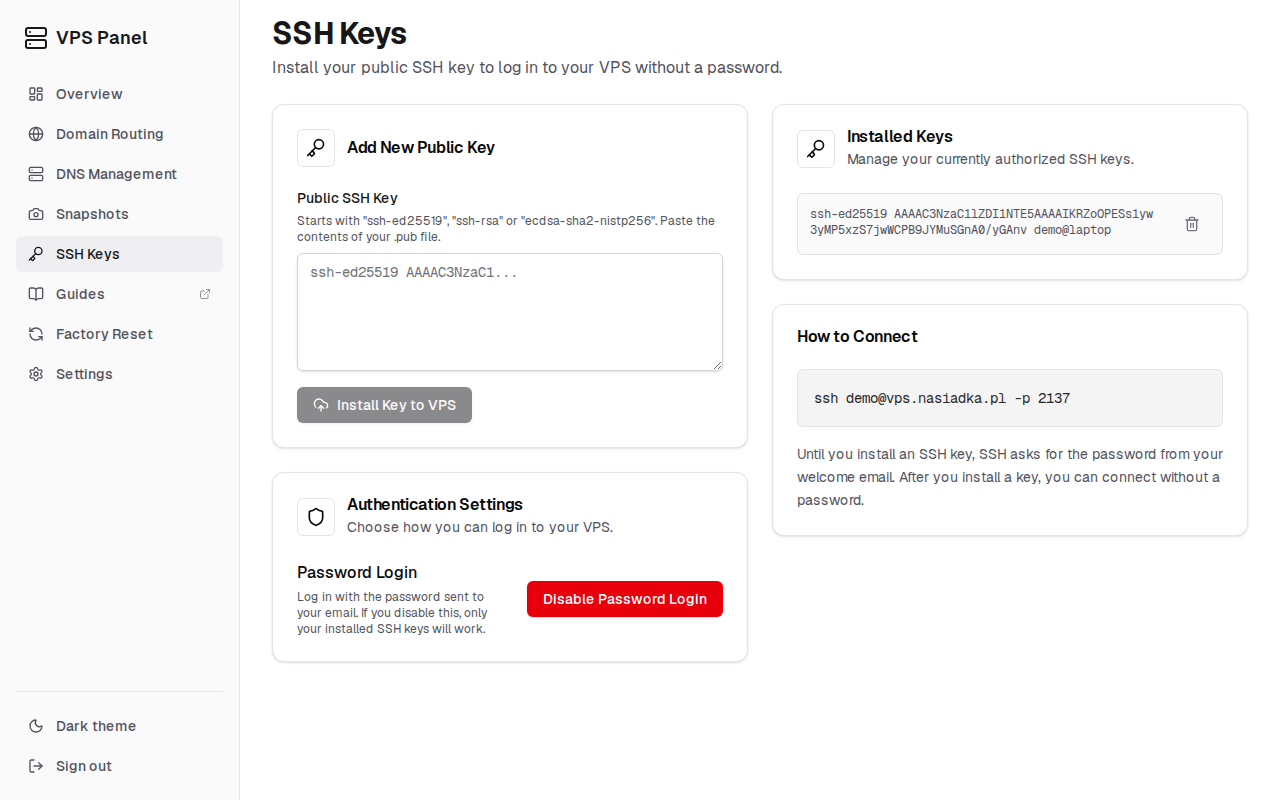
Open SSH Keys, paste the content of the
.pubfile into "Public SSH Key" and click "Install Key to VPS". If you have two-factor authentication enabled, enter your authenticator code too. You can install several keys, for example one per device.Connect without a password
Run the same
sshcommand again. SSH uses your key automatically.Optional: turn off password login
Once your key works, click "Disable Password Login" on the SSH Keys page. The button is available after you install a key. Only the administrator can switch password login back on, so make sure the key login works first.