Publish an app on a free subdomain
Every VPS account includes free subdomains under vps.nasiadka.pl. At the end of this guide, your web app is available over HTTPS at an address such as https://myapp.vps.nasiadka.pl, and you have set up no DNS records or certificates.
What you need
- An open SSH connection to your container. If you have not connected yet, follow Connect to your VPS over SSH.
- A web app in your container, written in any language, that listens on a known port such as
3000and on0.0.0.0(all network interfaces, not only127.0.0.1). If you have no app yet, follow Deploy a Node.js app on your VPS from scratch.
node -e "require('http').createServer((q,r)=>r.end('hello')).listen(3000,'0.0.0.0')"Publish it in three steps
Start your app inside the container
Run it on any port and make it listen on
0.0.0.0. To keep it running after you close SSH, use a process manager, a tool that restarts your app after a crash and starts it on boot. See Keep your apps running with PM2.Open Domain Routing in the dashboard
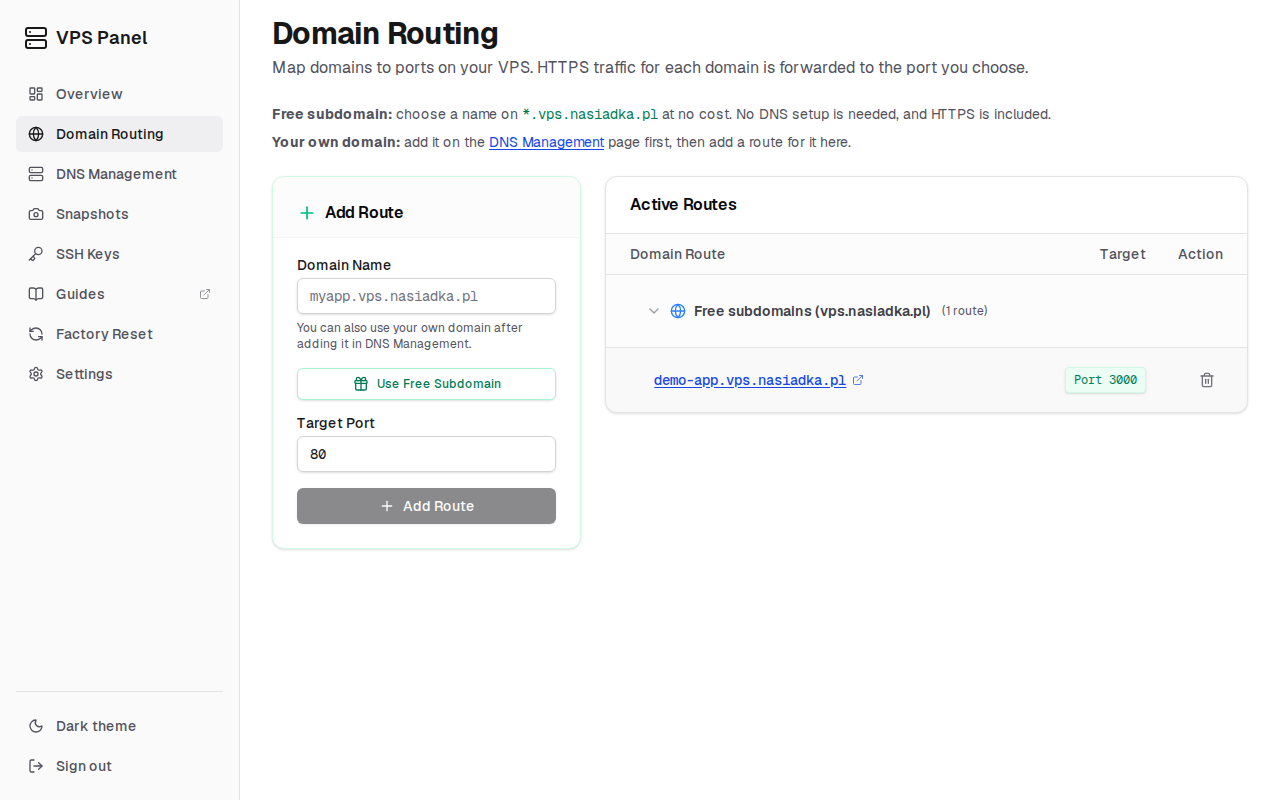
Click "Use Free Subdomain". It fills in a full name such as
myapp.vps.nasiadka.pl. Changemyappto the name you want, so that the field holds the full name. The part before.vps.nasiadka.plmust be a single word (no dots), not already taken, and not a reserved name such asapp,api,admin,wwwordev.Set the target port and add the route
Enter the port your app listens on (for example
3000) in "Target Port" and click "Add Route". The dashboard rejects reserved names at this point. Your app is then available athttps://myapp.vps.nasiadka.pl, with your own name in place ofmyapp.
Troubleshooting
- A 502 or 504 error usually means nothing is listening on the target port, or the app listens only on
127.0.0.1. - To see which programs are listening on which ports, run
sudo ss -ltnpin your container. - Your app must serve plain HTTP on the target port. HTTPS is handled before traffic reaches your container, so an app that accepts only HTTPS does not work.