Roll back your VPS with snapshots
A snapshot is a saved copy of your container's whole filesystem at one moment. Take one before a risky change. If something goes wrong, restore the snapshot to roll the whole VPS back to that point.
When to take a snapshot
- Before you run
apt dist-upgradeor another major OS update. - Before you install software you do not know.
- Before you run an automated install or deploy script.
Take a snapshot
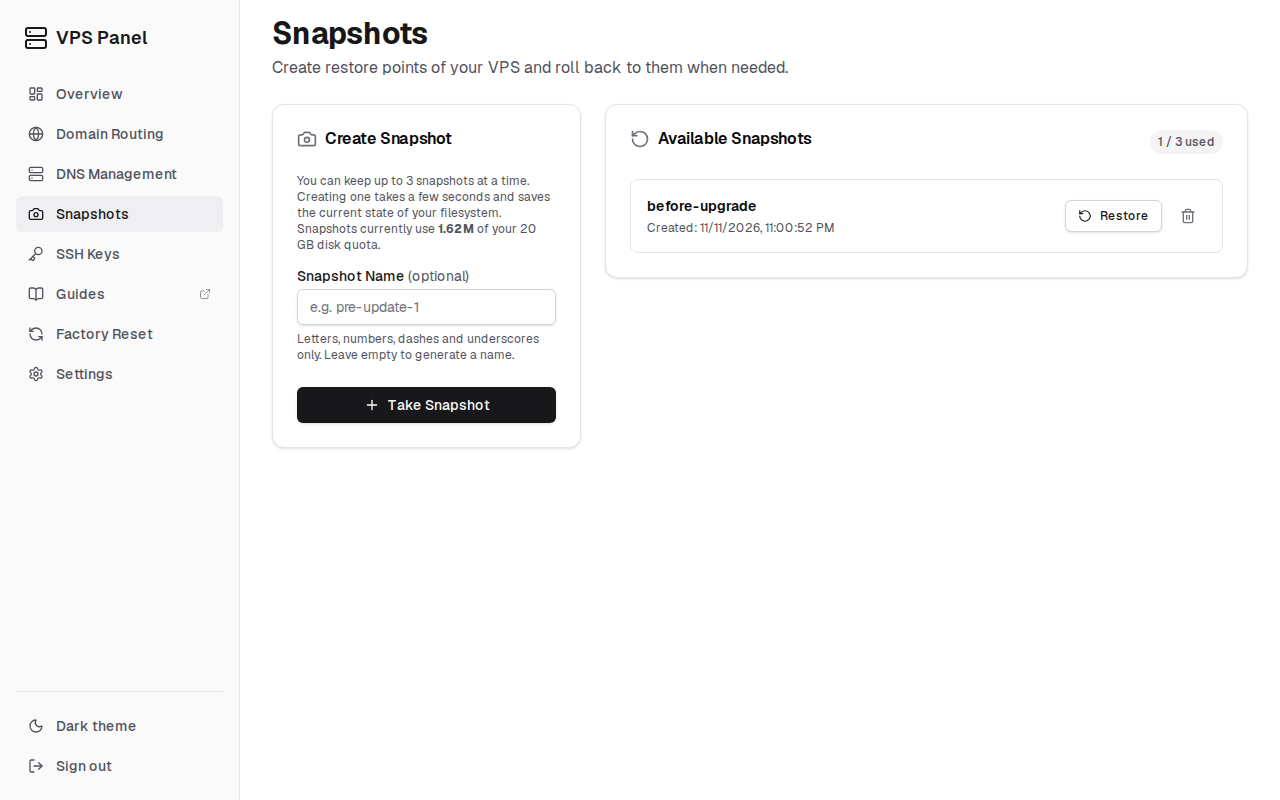
Open Snapshots in the dashboard
The page lists your snapshots and shows how many of the 3 allowed snapshots you have used.
Enter a name (optional)
Use letters, numbers, dashes and underscores, up to 64 characters, starting with a letter or number. For example:
pre-update-1. Leave the field empty to get a generated name.Click "Take Snapshot"
Creating a snapshot takes a few seconds.
Restore a snapshot
Click "Restore" next to the snapshot
The dialog names any newer snapshots that will be deleted. Confirm, and your container returns to the state of that snapshot.
Wait for the restart
The VPS restarts. When it is back, reconnect over SSH as described in Connect to your VPS over SSH.