Deploy a Node.js app on your VPS from scratch
This guide takes a fresh VPS container to a live Node.js app. You install Node.js, write a small Express server, keep it running with PM2 and publish it on a free *.vps.nasiadka.pl subdomain with HTTPS.
What you need
- An open SSH connection to your container:
ssh yourname@vps.nasiadka.pl -p 2137. If you have not connected yet, follow Connect to your VPS over SSH.
1. Install Node.js
sudo apt update
sudo apt install -y nodejs npm
node -v
npm -v
2. Create the app
mkdir ~/myapp && cd ~/myapp
npm init -y
npm install express
In ~/myapp, run nano server.js and paste this code. Save the file with Ctrl+O and Enter, then leave nano with Ctrl+X.
const express = require('express');
const app = express();
const port = process.env.PORT || 3000;

app.get('/', (req, res) => res.send('Hello from my VPS!'));

app.listen(port, '0.0.0.0', () => console.log(`Listening on ${port}`));
The important part is 0.0.0.0. It makes the app listen on all network interfaces, not only on 127.0.0.1. Without it, Domain Routing cannot reach the app.
node server.js
# in a second SSH session:
curl http://localhost:3000
3. Keep it running with PM2
Stop the test with Ctrl+C. PM2 is a process manager: it runs the app in the background, restarts it after a crash and starts it after a reboot. For more commands, see Keep your apps running with PM2.
sudo npm install -g pm2
pm2 start server.js --name myapp
# start on boot: copy and run the sudo command it prints, then save
pm2 startup
pm2 save
4. Publish it
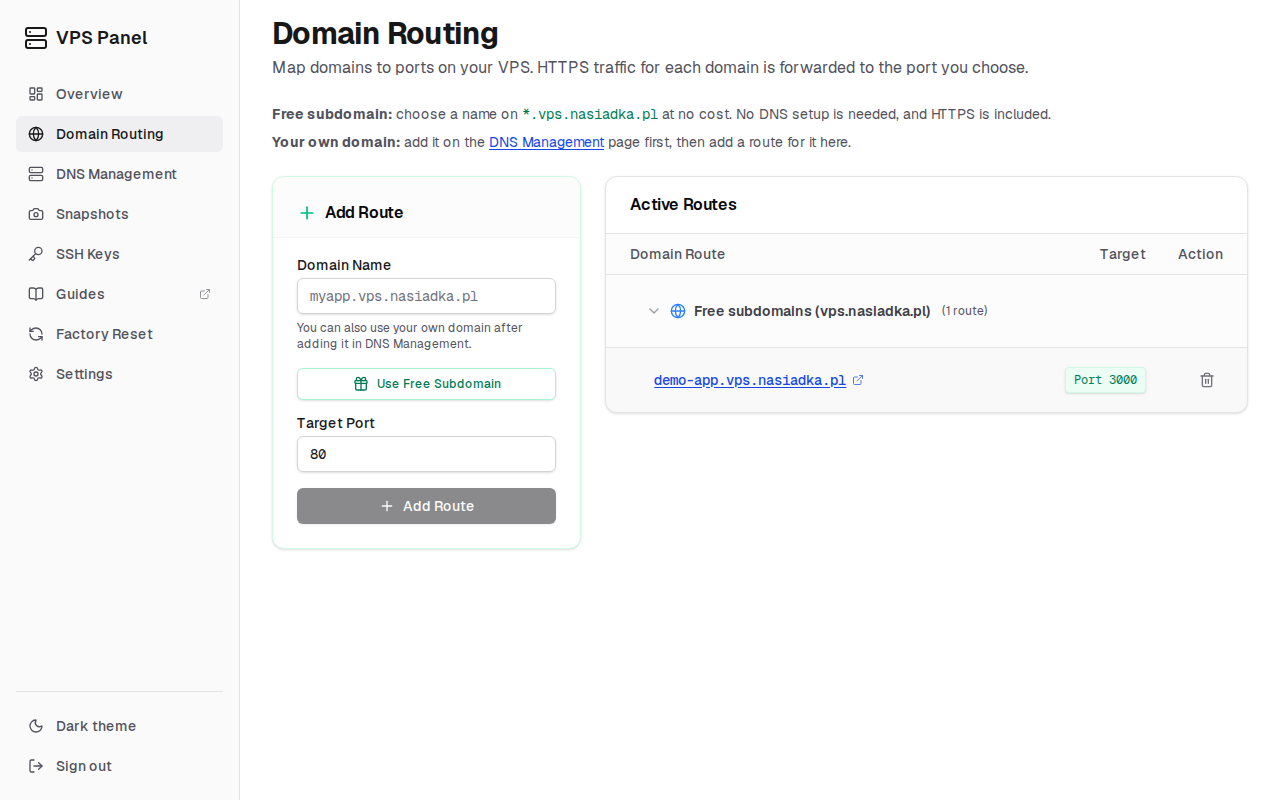
Open Domain Routing in the dashboard
Click "Use Free Subdomain". It fills in a full name such as
myapp.vps.nasiadka.pl. Changemyappto the name you want, so that the field holds the full name. The part before.vps.nasiadka.plmust be a single word (no dots), not already taken, and not a reserved name such asapp,api,admin,wwwordev.Set "Target Port" to 3000 and click "Add Route"
Your app is now live at
https://myapp.vps.nasiadka.pl, with your own name in place ofmyapp, and with a valid certificate. Open the address in a browser to see "Hello from my VPS!".
Updating and troubleshooting
- After you change the code, run
pm2 restart myapp. - Read the logs with
pm2 logs myapp. - Before big changes, take a snapshot so you can roll back. See Roll back your VPS with snapshots.
- A 502 or 504 error usually means the app is stopped, or it does not listen on
0.0.0.0and on the port set in the route.